How to Join Scheduled Runs (FT, DRS, BA)
Complete step-by-step guide for joining Forked Tower (FT), Delubrum Reginae Savage (DRS), and Baldesion Arsenal (BA) runs hosted in CAFE.
Overview
Proto-Ozma manages scheduled raid runs with different signup methods depending on the content type:
-
Forked Tower (FT) - Role-based internal/external signups with reserves
-
Delubrum Reginae Savage (DRS) - Role-based internal/external signups with reserves
-
Baldesion Arsenal (BA) - Party Leader signups with Free-For-All passcode drop
Tips for Success:
-
✅ Sign up early - Popular runs fill quickly
-
✅ Be flexible - Select multiple roles to increase chances
-
✅ Set reminders - Don’t forget about runs schedule sometimes 2-7 days out
-
✅ Communicate - Contact raid leader or reach out in chat if you have questions
-
✅ Withdraw early - If you can’t make it, withdraw ASAP!
-
✅ Stay updated - Check the raid lead’s thread or schedule regularly incase changes are made or runs cancled
Finding Scheduled Runs
The first important step for joining in any content is to go to #channels` and click the selection box next to the categories you are interested in, so that you will see the associated channels here in Discord.
Check Schedule Channels
CAFE Hosted Runs are posted in dedicated schedule channels:
-
#forked-schedule- Forked Tower runs -
#drs-schedule- Delubrum Reginae Savage runs -
#arsenal-schedule- Baldesion Arsenal runs
External Runs are posted in the following channels:
-
#na-forked-schedule- External Forked Tower runs -
#na-drs-schedule- External DRS runs -
#na-arsenal-schedule- External BA runs
| External Runs are not hosted on CAFE and we will not be able to assist with signups or troubleshooting. Please contact the raid leader and join the other Discord server for help. |
Scheduled Runs Channel Format
Each channel has runs that are seperated by type first and date second.
Key Information:
-
Date/Time - When the run starts (time is automatically converted to your timezone according to your system)
-
Raid Leader - Who’s organizing the run
-
Space Availability - FT and DRS exclusive, this shows how many spots are left on the run.
-
Party Leads - BA exclusive, this shows how many party leaders have signed up for the run.
-
Thread/Signup Link - Click here to go to the signup thread (FT/DRS)
| Set a reminder! At the bottom of the channel click the "⏰ Set Reminder" button to get a DM reminder 90 minutes before the run starts with all the important info and signup status. |
Joining Forked Tower (FT) and Delubrum Reginae Savage (DRS) Runs
Forked Tower and DRS Raid leads in CAFE use role-based internal signups with either the CAFE exclusive Roster Manager or with External Sign-up systems (like Excel or Sheets). The signup method is determined by the raid lead and will be specified in the run announcement. Please read rach run announcement carefully to understand which method is being used for the run you want to join.
If you are looking for unlock reqirements or more information for either of these two activities please check out the #forked-resources and #drs-resources respectfully.
|
All CAFE hosted Forked Tower runs are found in the #forked-schedule channel.
All CAFE hosted DRS runs are found in the #drs-schedule channel.
How to read the schedule:
-
Date/Time - When the run starts (automatically converted to your timezone)
-
Raid Leader - Who’s organizing the run
-
Space Availability - Shows how many spots are left on the run
-
🟢 Green Light - Signups Open
-
🟡 Yellow Light - Signups are approaching full
-
🔴 Red Light - Run is full, join the reserve queue!
-
🚫 Stop Sign - Run is full, no reserves requested.
-
-
Discussion Thread - Click here to go to the discussion thread for the run, where you can ask questions and coordinate with the other participants.
-
Run ID# Sign-Ups - Click this to go to the sign-ups thread for the run, where you can sign up and select your roles.
You can also hover over either the #forked-chat or #drs-chat to see the most active run channels!
|
How to Sign Up:
-
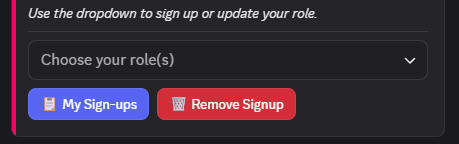
Use the dropdown in the thread to select your your prefurred class. You can choose more than one role to increase your chances of getting in.
-
Once you submit your role selection, the bot will request more information depending on which run you signed up for. This step is optional but highly recommended as it will help the raid lead with party distibution.
-
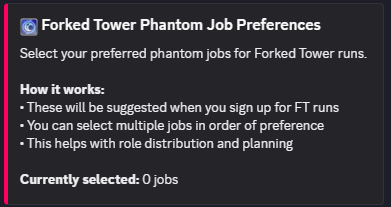
If you signed up for Forked Tower you can review and update your phantom jobs. You can also do this with the
/forked-preferencesat anytime and click
-
-
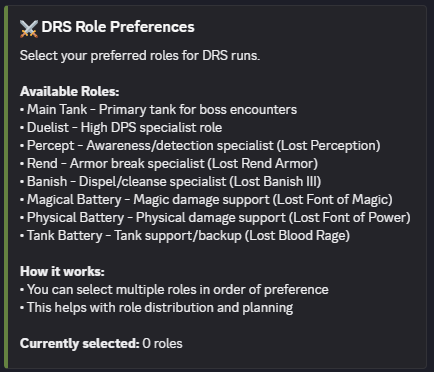
If you signed up for DRS you can review and update your DRS roles. You can also do this with the
/drs-preferancescommand at anytime and click
After signing up, you can check your status in the run thread or click  button. This will show all of your current signups, your role selections, and your party assignment once it’s distributed.
| Right now CAFE is currently running a bi-weekly poll for Forked Tower Blood Prog points. Feel free to submit your request to help raid leads get a good idea what the demand is for running the content. |
Role Selection Tips:
-
✅ Select all roles you can play
-
✅ Update your preferances often
-
✅ Come prepared and geared for the run
-
❌ Don’t select roles you’re not comfortable performing as you might be asked to do it.
-
❌ Don’t sign up for multiple runs at the same time.
Joining Baldesion Arsenal (BA) Runs
BA Raid Leaders in CAFE use only party leader signups and free-for-all password drop for all BA runs.
Please note Party Leader Signups are optional for BA runs. You can still join the run through the passcode drop method without signing up as a party leader, but signing up helps the raid lead with organization and planning. Keep in mind that you will be required to be responsible for your party of 8 players, so make sure you are comfortable with the role before signing up.
| If you are looking for unlock requirements for BA, check out the Baldesion Arsenal Resources page for guides and helpful resources! |
Reading the Schedule
Find a run that works for you using the #arsenal-schedule channel for CAFE hosted runs or #na-arsenal-schedule for external runs.
Key Information:
-
Sprout New Player Friendly Runs - These runs are specifically designed to be welcoming and educational for new players. If you’re new to BA, look for these runs and join the voice calls for extra guidance and support. Feel free to ask questions in voice or text, the raid leads and community are here to help you learn! Vet’s are more than welcome to join these runs as well, and your experience will be a great help to the new players.
-
Star
/plusonebutton - Indicates that the raid lead is using the plus-one system for first clears. This allows players to sign up before password drop to guarantee a spot into the upcoming run. To use plus-one, simply run the/plusonecommand and select the run you want to join. The raid lead will then approve your request and add you to the run. Please note that plus-one is for first clears only, so if the run has already cleared once, this option will not be available. -
Click the
⏰ Run Reminderbutton to get a DM reminder 90 minutes before the run starts -
Click the
🔔 Follow Raid Leadsbutton to get notifications when your preferred Raid Lead schedules a run. -
Click the
ℹ️ Insructionsbutton for a quick refresher on how to join BA runs -
Click the
🔕 Toggle Pingsbutton to toggle your Forked Raider pings on and off
Please note you will not be able to use the Scheduling button unless you have have the BA Caller role. If you are interested in becoming a BA Caller, please reach out to a raid leader or staff member for more information.
|
How to Join a BA Run
30 Minutes Before the Run:
-
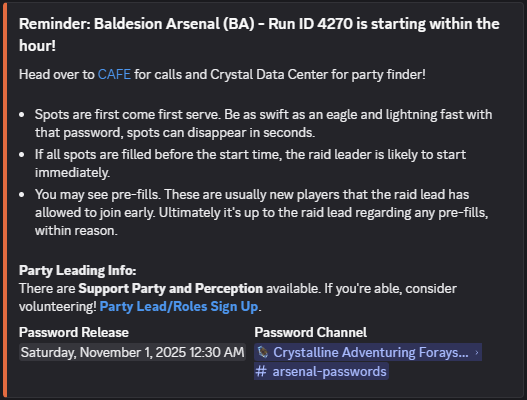
The passcode will be posted in
#arsenal-passwords -
All parties are free-for-all unless the raid lead specifies otherwise
-
You will find the parties listed in the Private Tab of Party Finder in-game (Earth, Wind, Water, Fire, Lightning, Ice, and Support)
-
Be sure to be Online and in Kugane before the passcode drops to ensure you can join quickly
-
Feel free to join the BA West voice channel anytime after the passcode drops to coordinate with the party and listen to callouts. Being in voice call is never required but can enhance the experience and help with coordination.
If you used the /plus-one system, you will receive a DM with the passcode and party assignment 30 minutes before the run starts, so make sure your DMs are open!
|
Being A Party Leader
If you want to lead a party:
-
Go to
#arsenal-scheduleand clickparty leadsto be taken to the #arsenal-party-leads announcement channel -
Use the dropdown to select a party (Earth, Wind, Water, Fire, Lightning, or Ice)
-
Make sure you have DM’s enabled for this server, as the bot will send you important information about your party and the run.
| You can also use this same method to sign up for Perception or Spirit Dart roles as well! |
Party Leader Responsibilities:
-
55 Minutes Before: Party leaders receive the passcode to set up Party Finder
-
30 Minutes Before: Passcode is posted publicly in
#arsenal-passwords -
During the Run: Party Leads are responsible for coordinating their party with ready checks, marker placement, and communicating with the Raid Lead as needed. If you are unable to fulfill these responsibilities, please do not sign up as a party leader and instead join the run through the passcode drop method.
Tips for Success:
-
✅ **Review
/ba_toolboxmechanics before first run -
✅ **Bring appropriate logos actions for your role, remember, you cannot trade in instance!
-
✅ **Listen to callouts in voice chat or pay attention to party chat in game.
-
✅ **If you didn’t make it in the run, don’t panic! You can always join Support!
-
❌ Do not sign up for Party Lead if you cannot communicate with the Raid leader or your party members.
Setting Up Reminders
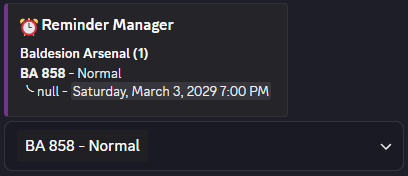
Never miss a run with personal reminders! This works for all CAFE hosted runs!
Set a Reminder
Method 1: Context Menu
-
Right-click the run announcement
-
Select Apps
-
Click Proto-Ozma
-
Select "Set/Remove Reminder"
-
Confirm in the interaction
Method 2: Reminder Manager
-
Look for
 button (usually in FT/DRS threads)
 -
Click to view all your reminders
-
Add new reminders via dropdown